
Knowing how to test backup restoration is different from checking whether a backup job completed. A backup can appear healthy while a file is incomplete, a mailbox is difficult to recover, or the restored system cannot support the work your team needs to do.
A practical restore test checks the whole path: can you find the right backup, restore it somewhere safe, verify its contents, and use what you recovered? A repeatable process can also show where instructions, access, or recovery tools need attention before an outage makes those gaps urgent.
Start with a safe, specific test
Choose a representative item, such as a business document, shared folder, email message, or application data set. Pick something important enough to test the process, but avoid using sensitive live records unless your test environment and access controls are appropriate for them.
Restore the item to a separate test location, not over the original. That might be a designated test folder, isolated system, or other non-production location approved for your environment. Make sure the test does not overwrite current files, change live permissions, or reconnect a recovered system to production before it has been checked.
For a system affected by malware, do not casually restore it into the active network. Keep recovery work isolated until someone qualified has assessed whether the restored environment is safe. CISA's incident recovery guidance can help inform your recovery planning.
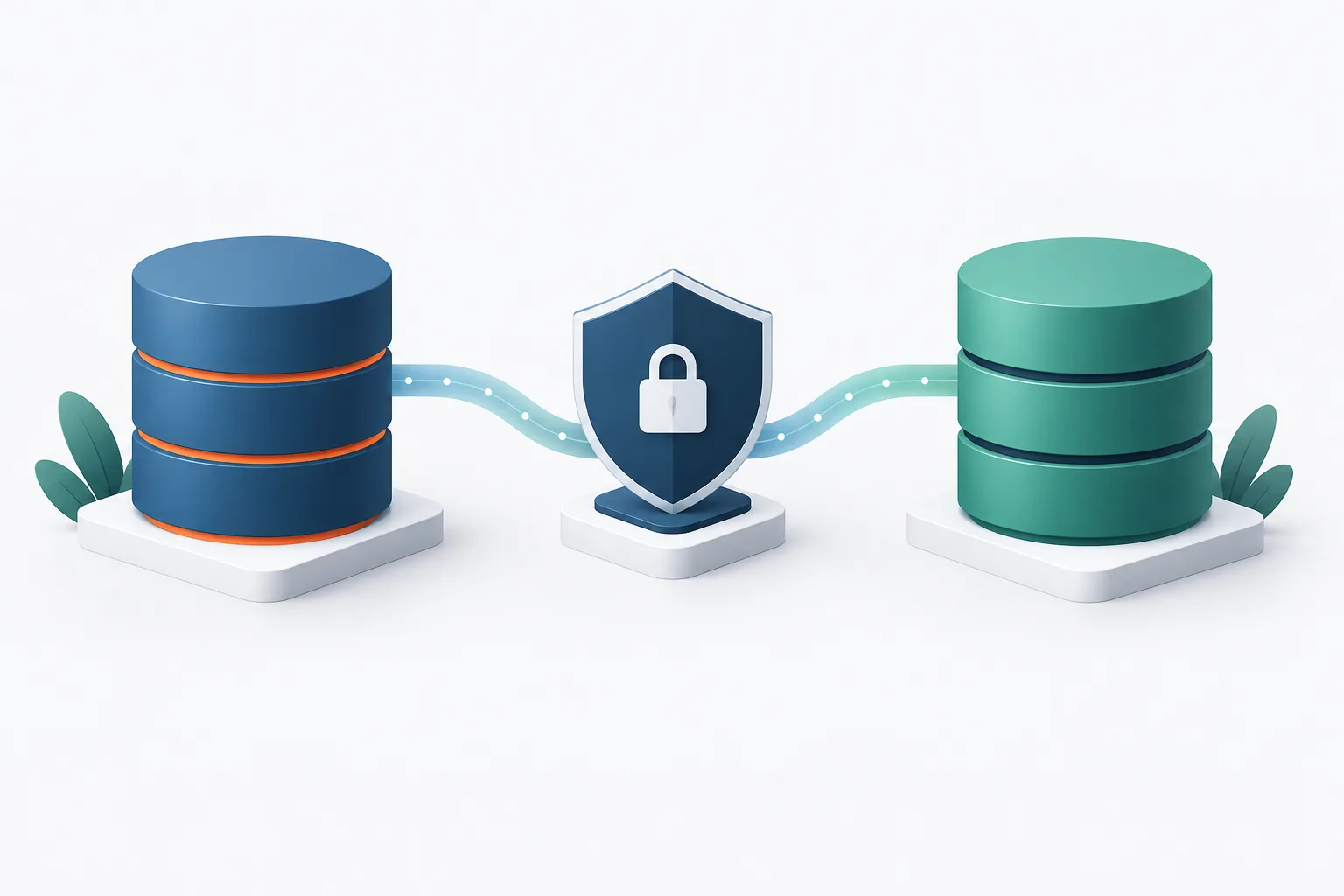
Backup restore test checklist
Use the same basic checklist each time. Assign an owner to the test, and record what was attempted and what happened.
- Choose the recovery item. Record the file, mailbox item, shared folder, or system you intend to restore, along with its business purpose.
- Identify the backup and restore method. Confirm which backup contains the item and that the person running the test can access the required account, tools, and instructions.
- Set a safe destination. Restore to a separate test location. Confirm that the process will not overwrite live data or expose sensitive information to people who should not have access.
- Check the recovered content. Open the file or item and confirm it is the expected version, readable, and complete enough for its intended use. For a folder, check a representative selection rather than relying on the folder name alone.
- Check access and permissions. Confirm that the appropriate staff member can use the restored material and that access is not broader than intended.
- Record recovery time and missing work. Note how long the restore took and whether the recovered version is missing recent changes the business expected to have.
- Confirm the next step. Record whether the test passed, what needs fixing, who owns the follow-up, and when to test again.
For a broader recovery exercise, add the steps people would need to resume work: logging in, opening required applications, reaching shared information, and using connected services. A system that powers on but cannot support the actual workflow is not yet a usable recovery.
Include email and the dependencies around it
Email is often part of daily work, but a file-only test will not show whether a mailbox or a specific message can be recovered. Select an appropriate test item and confirm that its contents, attachments, and relevant details are available after restoration. Also check whether the person who needs the restored item can access it.
Restoration options differ by service and configuration. If your business uses Microsoft 365 Backup, consult Microsoft's restore instructions for the service and data type you are testing. For other email platforms, use the provider's current documentation and your own backup procedures.
Think beyond the item itself. A working recovery may depend on account access, permissions, encryption keys, software, network connections, or instructions held by a particular person. Include the dependencies that are necessary for your team to use the restored data, while keeping the test limited to a safe, controlled environment.
Set a repeatable backup recovery schedule
There is no single schedule that fits every business. Set a cadence based on how disruptive data loss would be, how often information changes, how quickly the business needs to resume work, and any applicable requirements. Keep the schedule simple enough that someone is accountable for carrying it out.
- On a regular cadence: Sample a critical file or shared folder, and test a representative email recovery if email is central to daily operations.
- Periodically: Test a broader recovery that includes a key application, system, or business process. Confirm the people and access needed to complete it.
- After meaningful changes: Revisit the test when systems, providers, backup settings, or important workflows change.
- After a disruptive event: Review recovery readiness after an outage or loss of office access, such as a power or internet interruption. A planned test helps reveal gaps; it does not replace a response plan during an actual event.
Write down the owner, test item, destination, expected result, and follow-up for each exercise. The NIST contingency planning guide offers a framework for thinking about recovery planning and exercises. For broader planning around service interruptions, see Zevonix's guide to setting recovery goals your business can meet.
How to judge whether a restore test passed
Do not mark a test successful just because a restore process finished. Ask whether the recovered information is intact, accessible to the right people, and useful for the task it supports. For a system or workflow, verify that staff can sign in and complete the essential steps without relying on unavailable components.
Compare the recovered version with the business's expectations. If recent work is missing, document what is absent and consider whether that amount of loss would be acceptable during an actual disruption. You can use that result to revisit your recovery goals, including the steps involved in preparing for a local outage.
A failed test is useful information, not a reason to hide the result. Record the failure, identify whether the cause was access, backup selection, instructions, timing, or the recovered data itself, and assign someone to address it. Then repeat the test. A fix is not confirmed until the restore has been checked again.
Frequently asked questions
How can we test a backup without overwriting live files?
Choose a separate, approved destination before starting the restore. Confirm the selected location and restore options, and keep the test isolated from production systems when appropriate. If you are unsure how the restore behaves, ask the backup or IT administrator to supervise.
What should we do if a restore test fails?
Write down what failed and at which step, then check the backup selection, access permissions, restore instructions, and destination. Assign an owner to correct the issue and repeat the test to verify the change.
How do we know whether a restored system is usable?
Check more than startup. Confirm that an appropriate user can sign in, reach the necessary data, and complete the essential workflow, including any required connected applications or services.
Should we test after a hurricane or power outage?
Review recovery readiness after a disruptive event, especially if systems, access, or backup conditions may have changed. For an active incident, follow your response plan and use a controlled recovery process rather than restoring blindly into live systems.
Make restore testing part of keeping operations running
A backup restore test turns an assumption into something your team can verify. Start with a safe sample, check content and access, record the result, and build toward broader recovery exercises that reflect how your business works.
If you want help reviewing backup and recovery processes, Zevonix provides disaster recovery and backup support for small businesses in Jacksonville and Northeast Florida. Contact the team to discuss a practical restore-testing approach for your environment.